Knowledge source sync
Run a knowledge source's sync on demand, set its auto-sync schedule, and read the history of every run.
A knowledge source is copied into the workspace knowledge base ahead of time, not read live — so the assistant only sees what the last sync brought in. Syncing is how that copy is kept current: on demand with Sync now, or on a repeating auto-sync schedule. Every attempt is recorded as a run, and each run lists exactly which documents it created, updated, retired or held.
This page covers running and scheduling syncs and reading the results. Adding a source, its import policy, its reviewers and removing it are on the Knowledge sources page.
Prerequisites
- The manage knowledge sources workspace permission — owners and admins have it. Without it the page shows an access-denied notice.
- At least one knowledge source in the workspace.
- The source must still be reachable. A source whose site is down, or whose credentials have been revoked, records a failed run rather than silently going stale.
Read a source's sync state at a glance
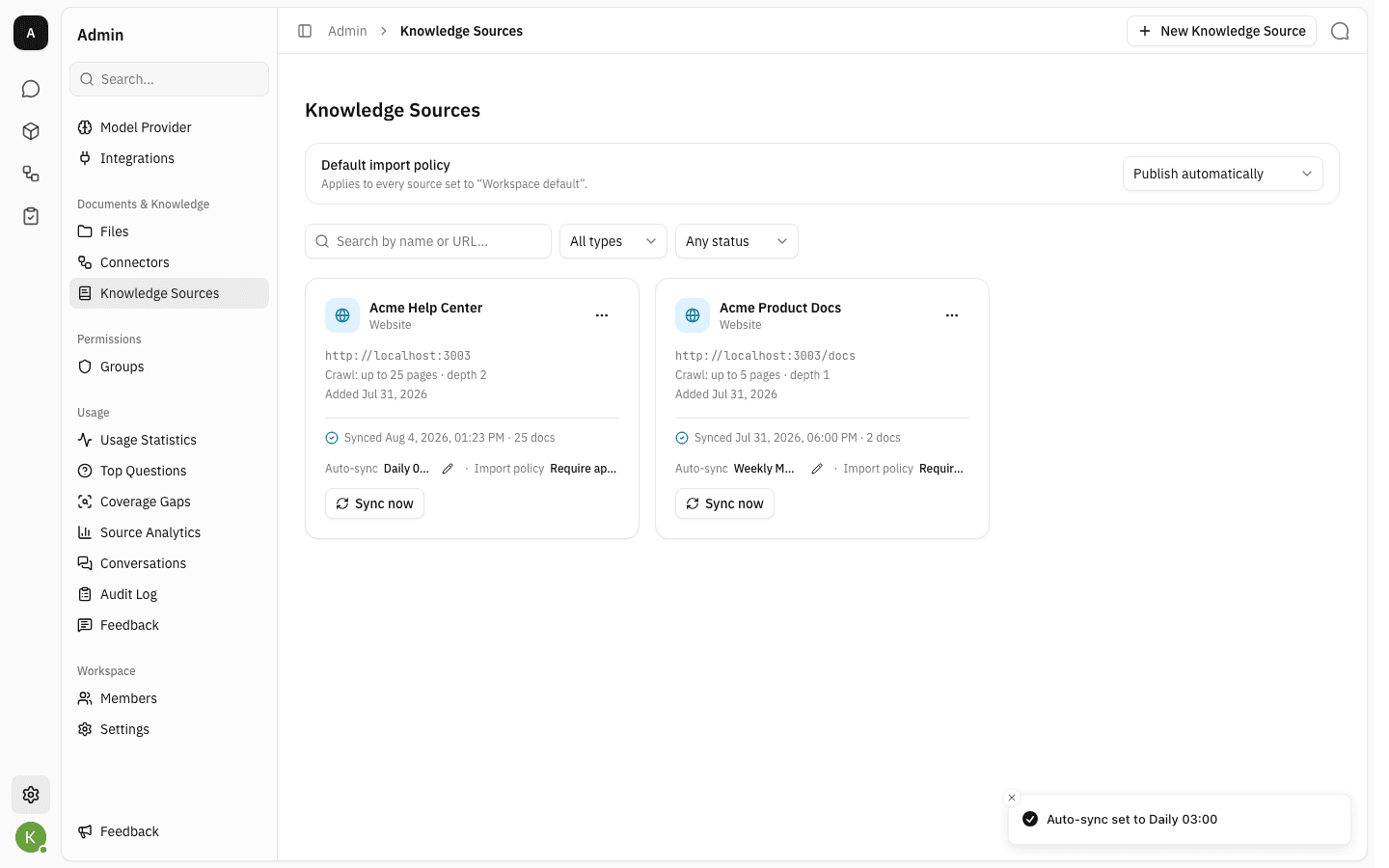
Each card on Admin → Knowledge Sources ends with a sync footer: the outcome of the last run, the auto-sync schedule, the import policy, and a Sync now button.

The status line on the left tells you where the source stands:
| Status | Meaning |
|---|---|
| Not synced yet | The source has never completed a run. |
| Syncing… | A run is in progress right now. |
| Synced (date · document count) | The last run finished cleanly. |
| Partially synced | The run finished, but some documents failed. Hover for the reason — they are retried on the next run. |
| Sync failed | The whole run failed. Hover for the error. |
Sync now
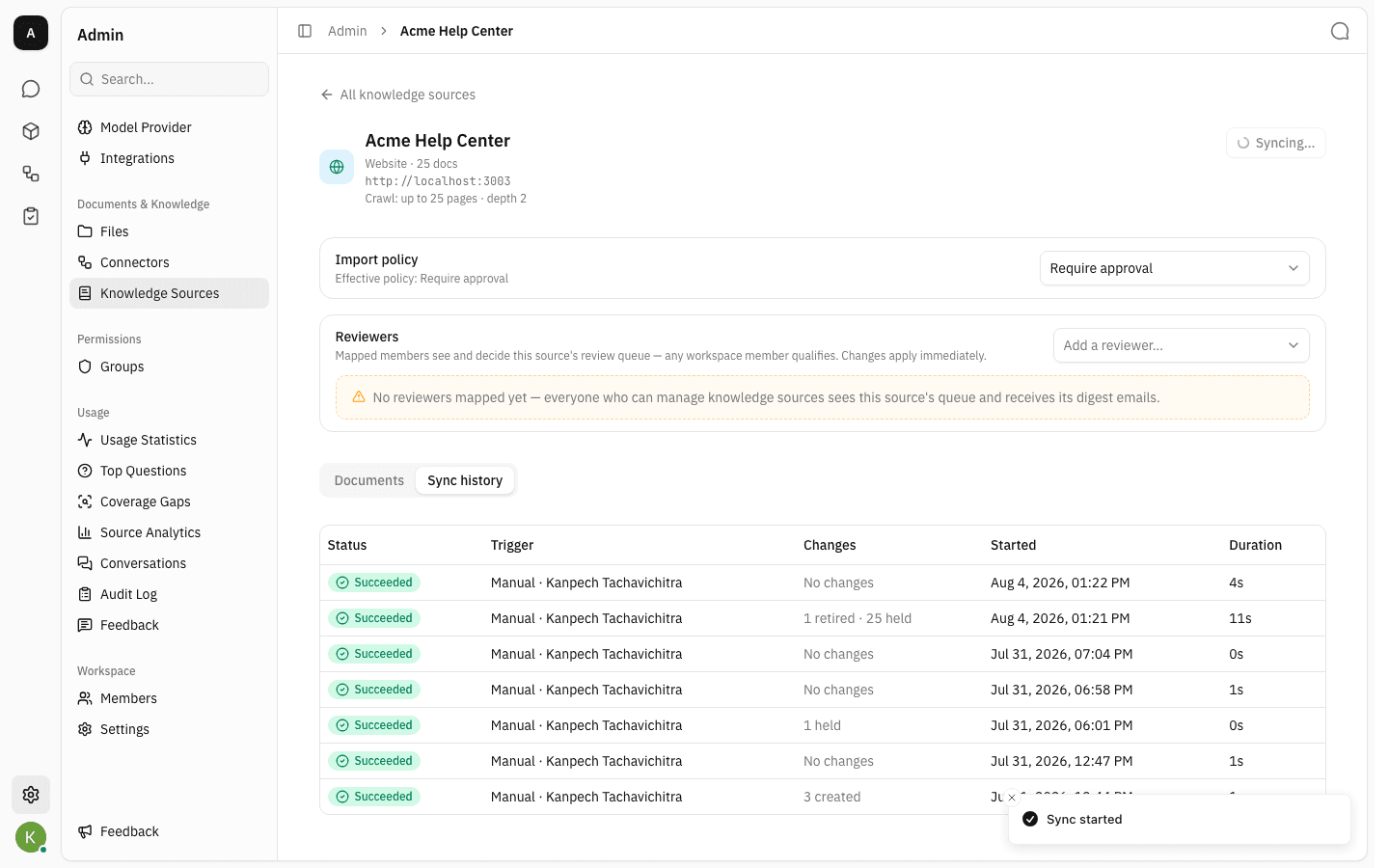
Click Sync now on the card. The button changes to Syncing…, a Sync started confirmation appears, and the status line switches to Syncing… until the run finishes.
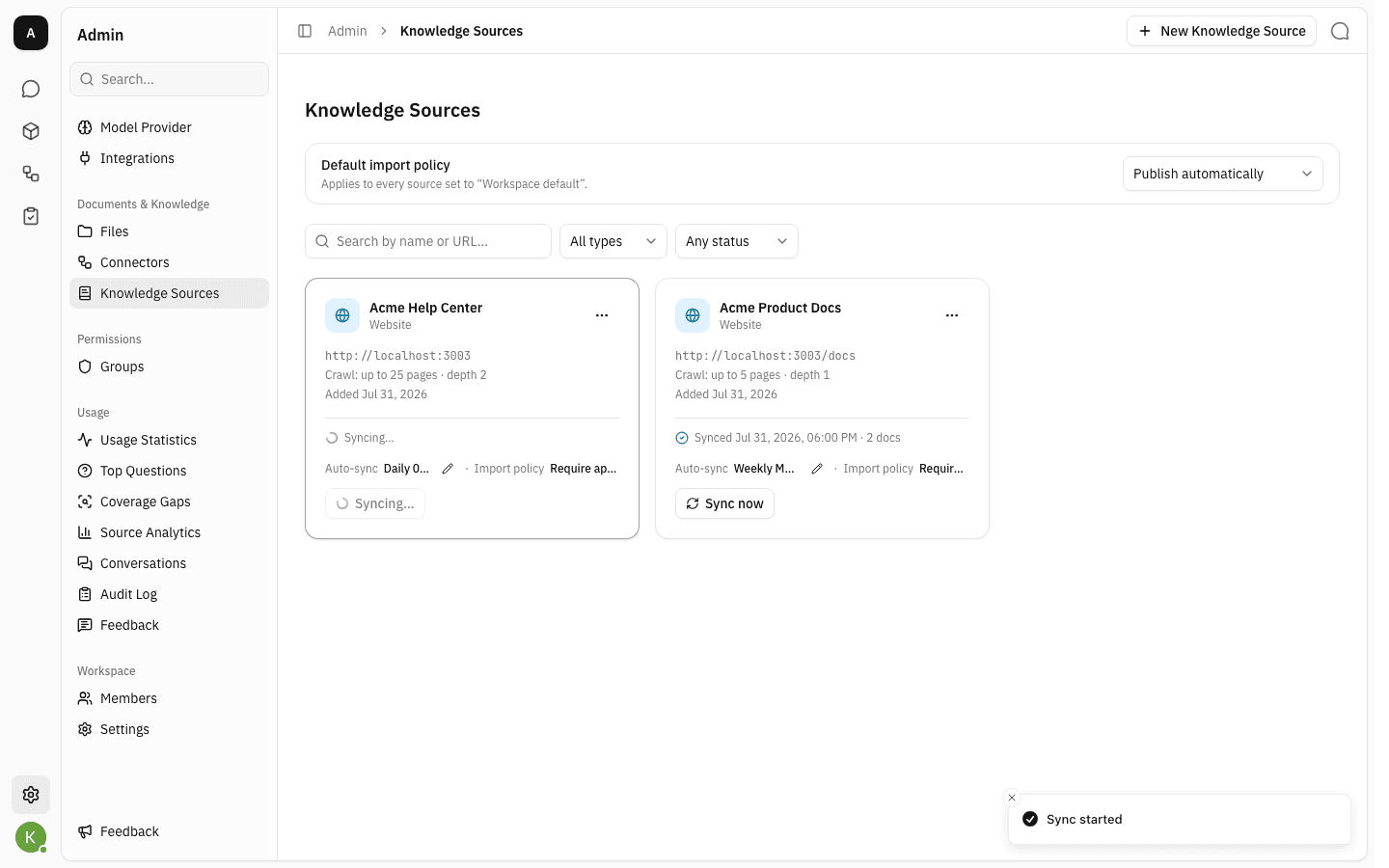
A source can only have one run at a time, so Sync now stays disabled while its run is in progress. If a scheduled run happened to start in the meantime, the platform tells you a sync is already running and offers a View run link to it instead of starting a second one.
Set the auto-sync schedule
Manual syncs are for when you know something changed. The schedule is what keeps a source current without anyone remembering to press a button.
-
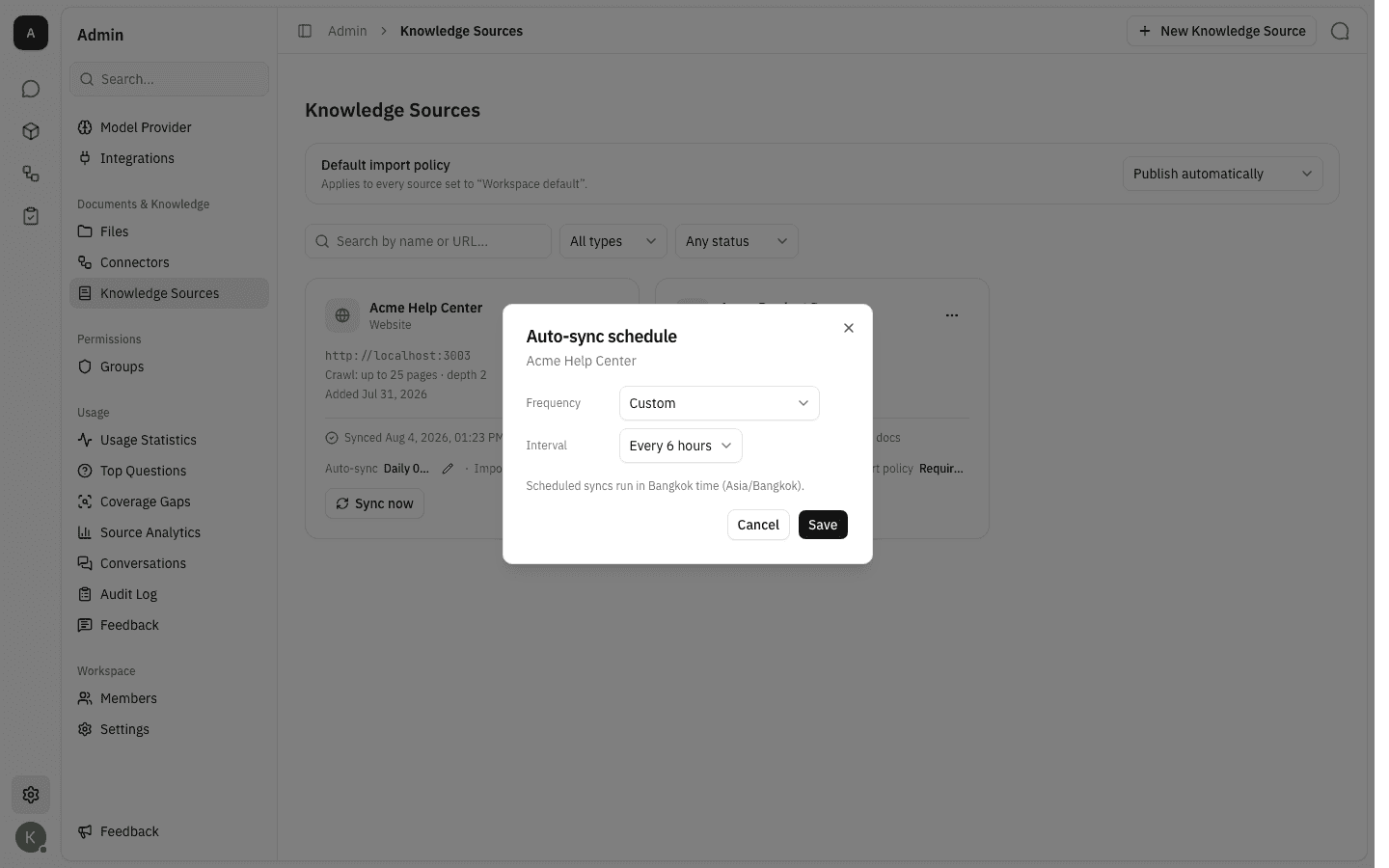
Click the pencil next to Auto-sync on the card. The dialog opens on the source's current schedule.
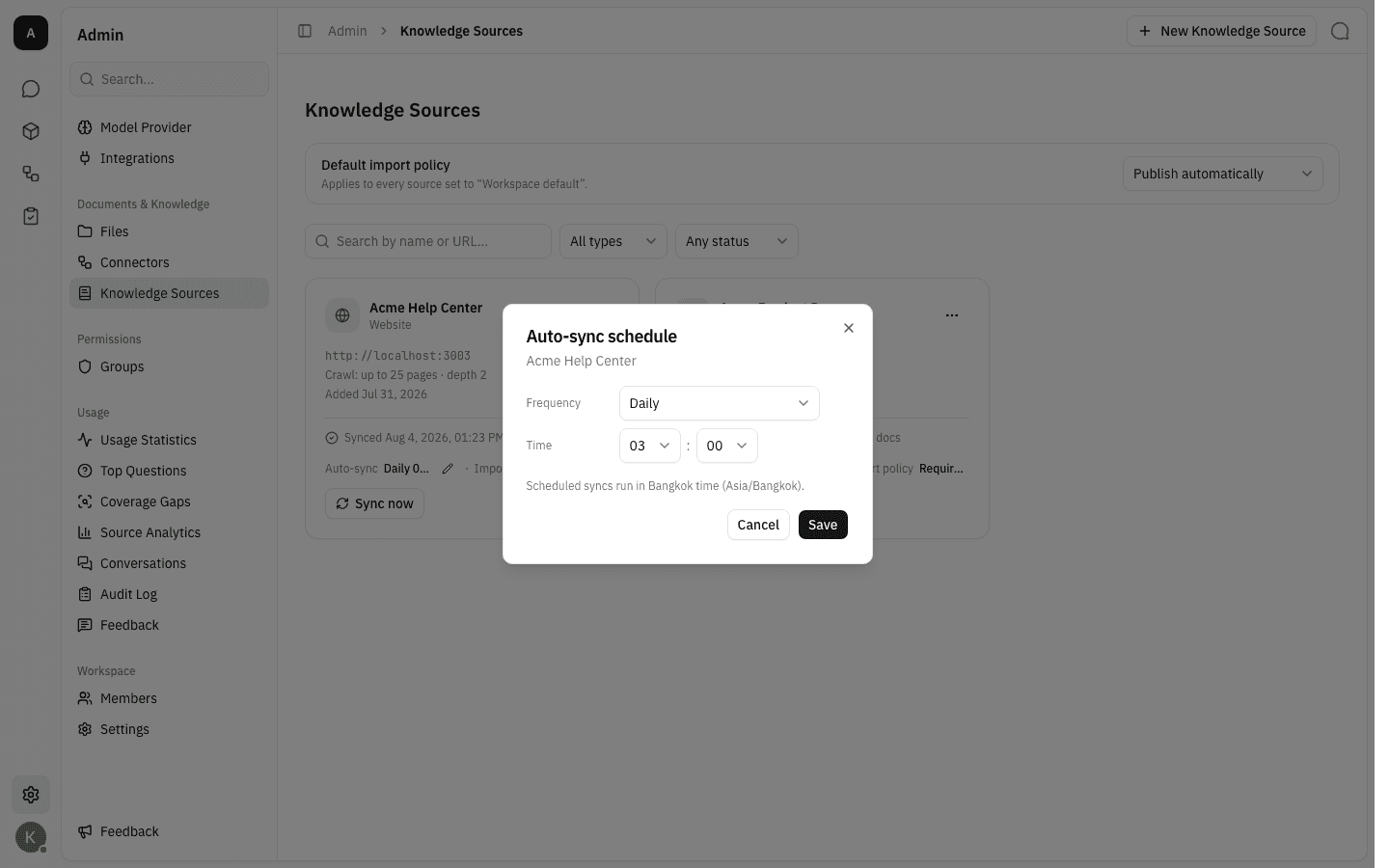
-
Frequency offers the six cadences. Off: manual sync only means the source is never synced unless someone presses Sync now.
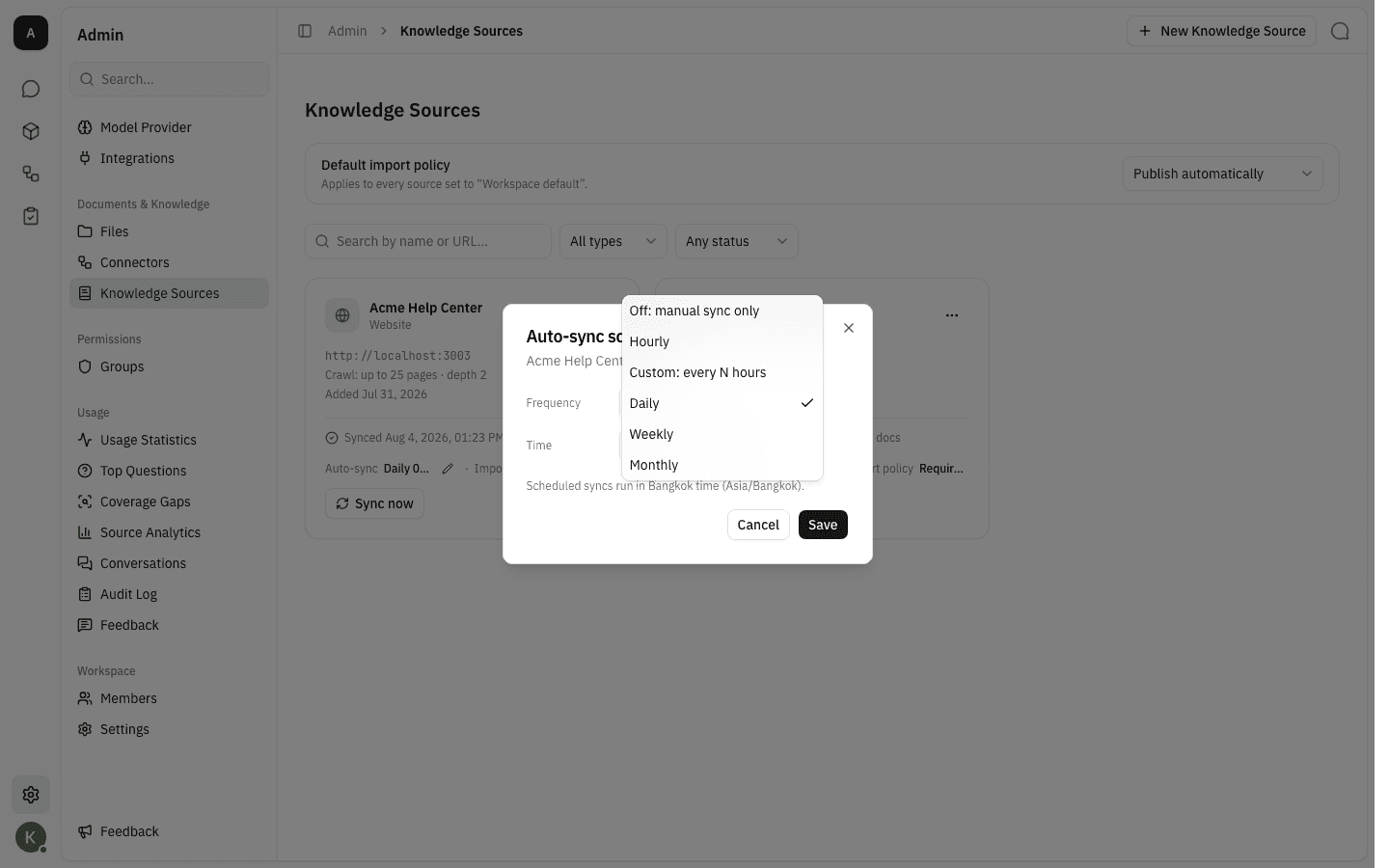
-
The rest of the dialog follows the cadence you pick — Weekly adds a Day and a Time, Daily just a time, Monthly a day of the month. Times are offered on the quarter hour.
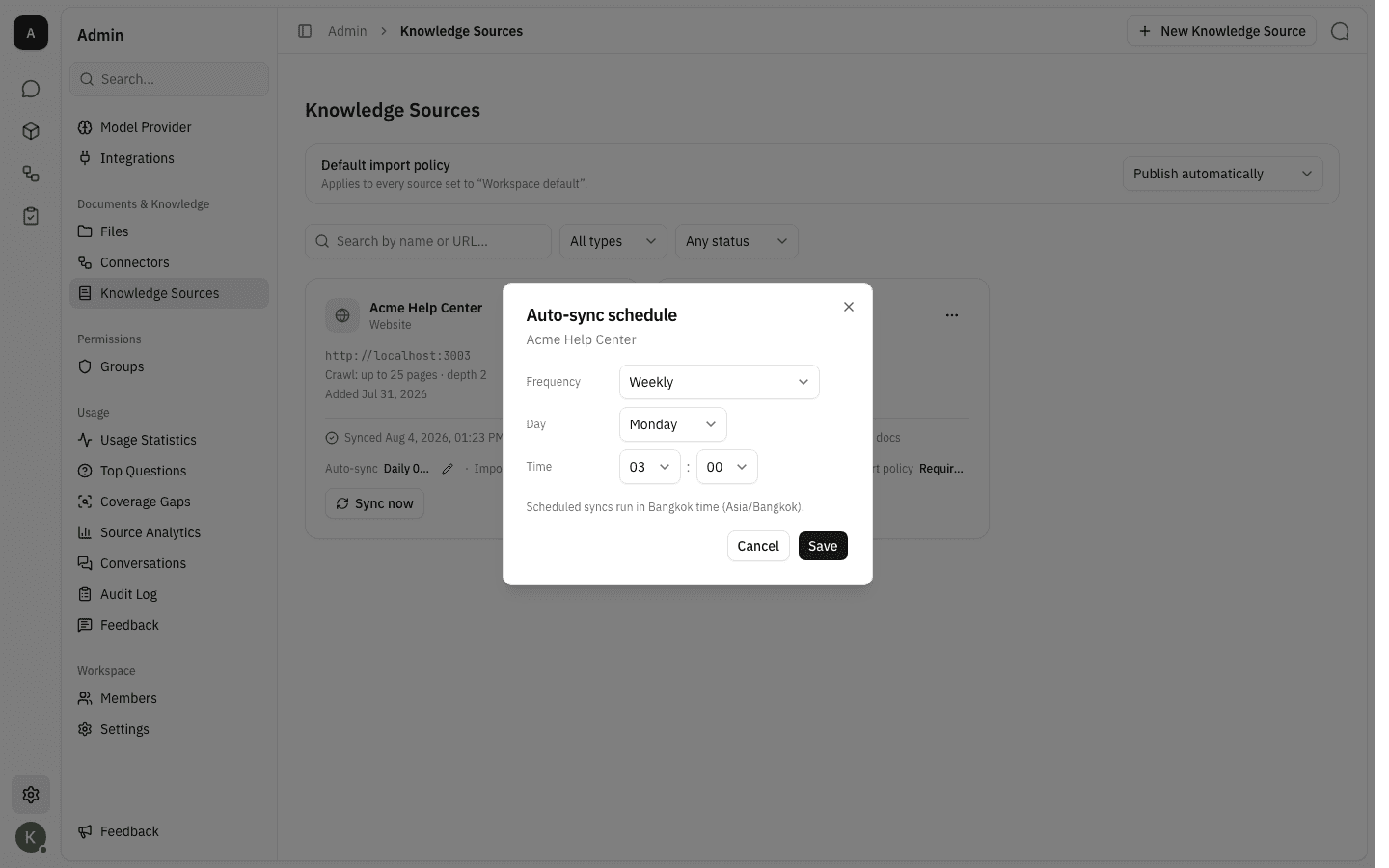
-
Custom: every N hours replaces the clock with an Interval — every 2, 3, 4, 6, 8 or 12 hours. These are the gaps that divide the day evenly, so the run lands at the same clock times each day.
-
Nothing is saved until you click Save — a half-changed schedule never reaches the server, and Cancel discards the draft. On success the card's Auto-sync row shows the new schedule.
Read the sync history
Open the source's … menu and choose Settings & sync history. Below the import-policy and reviewer settings the page splits in two tabs: Documents, which compares the knowledge base against the source document by document, and Sync history, which lists that source's runs, newest first. Pick Sync history.
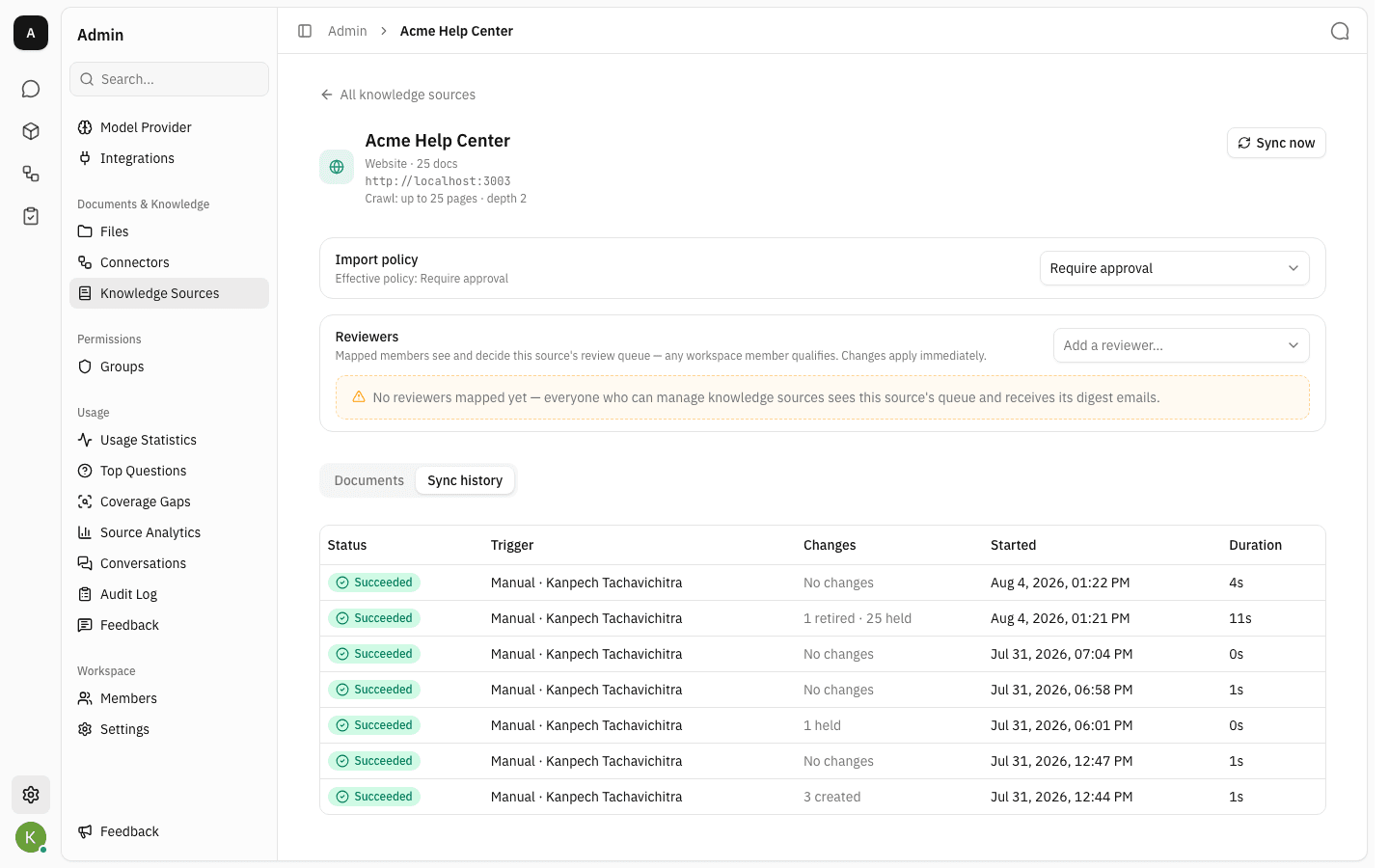
Each row summarises one run:
- Status — Succeeded, Partial, Failed or Running. A warning triangle next to the badge carries the error message.
- Trigger — Scheduled, or Manual with the name of the person who pressed the button.
- Changes — a count per outcome, joined by
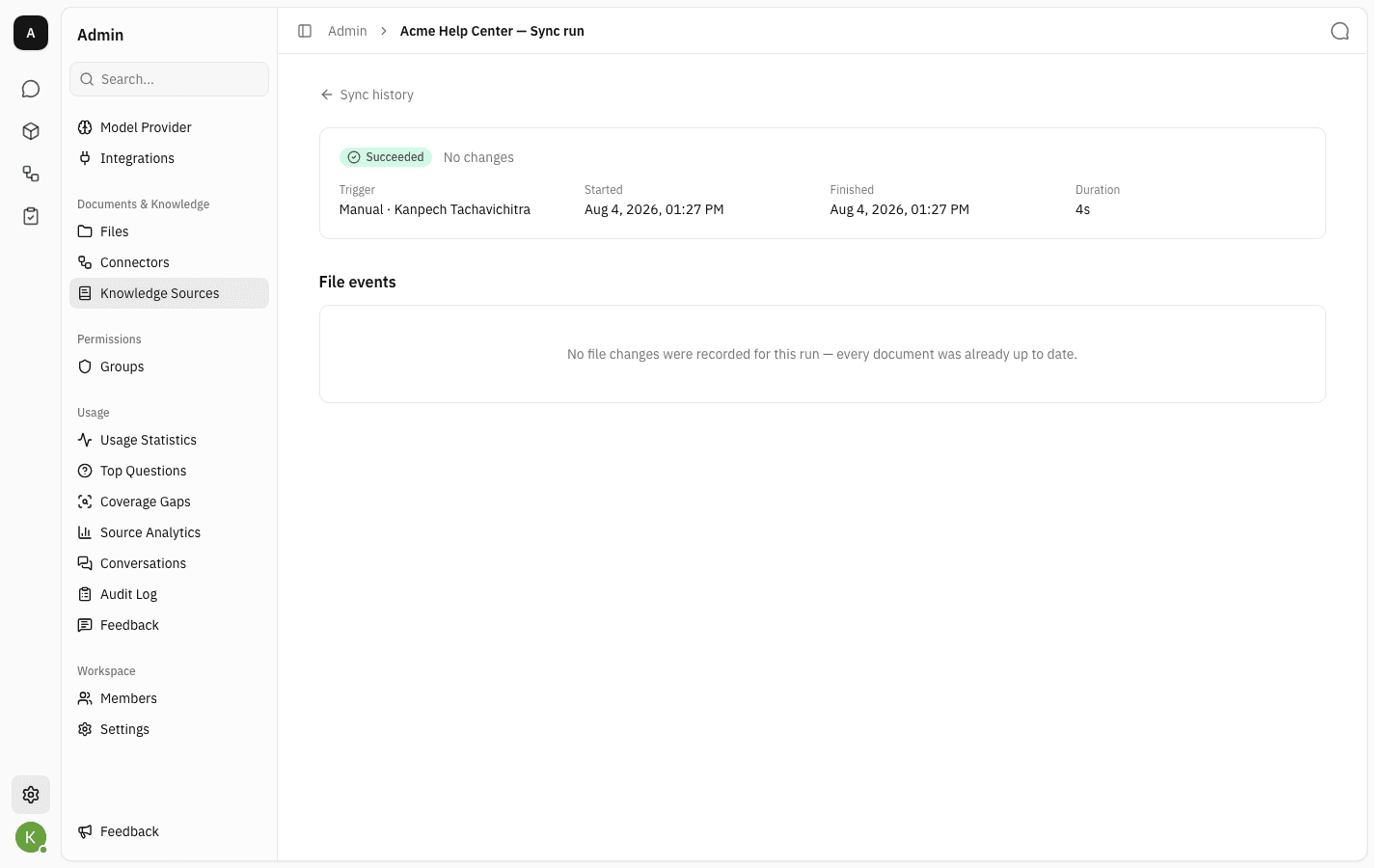
·when a run did several things, for example3 createdor1 retired · 25 held. A run that found nothing new reads No changes. - Started and Duration.
The table shows the most recent runs; Load older runs appears underneath once a source has more history than one page.
This page also carries its own Sync now button, so you can start a run and watch it appear in the history without going back to the list.
Open a single run
Click any row to open that run. The summary repeats the outcome, trigger, start and finish times and duration, and — when the run failed — the error. Below it, File events names every document the run touched.
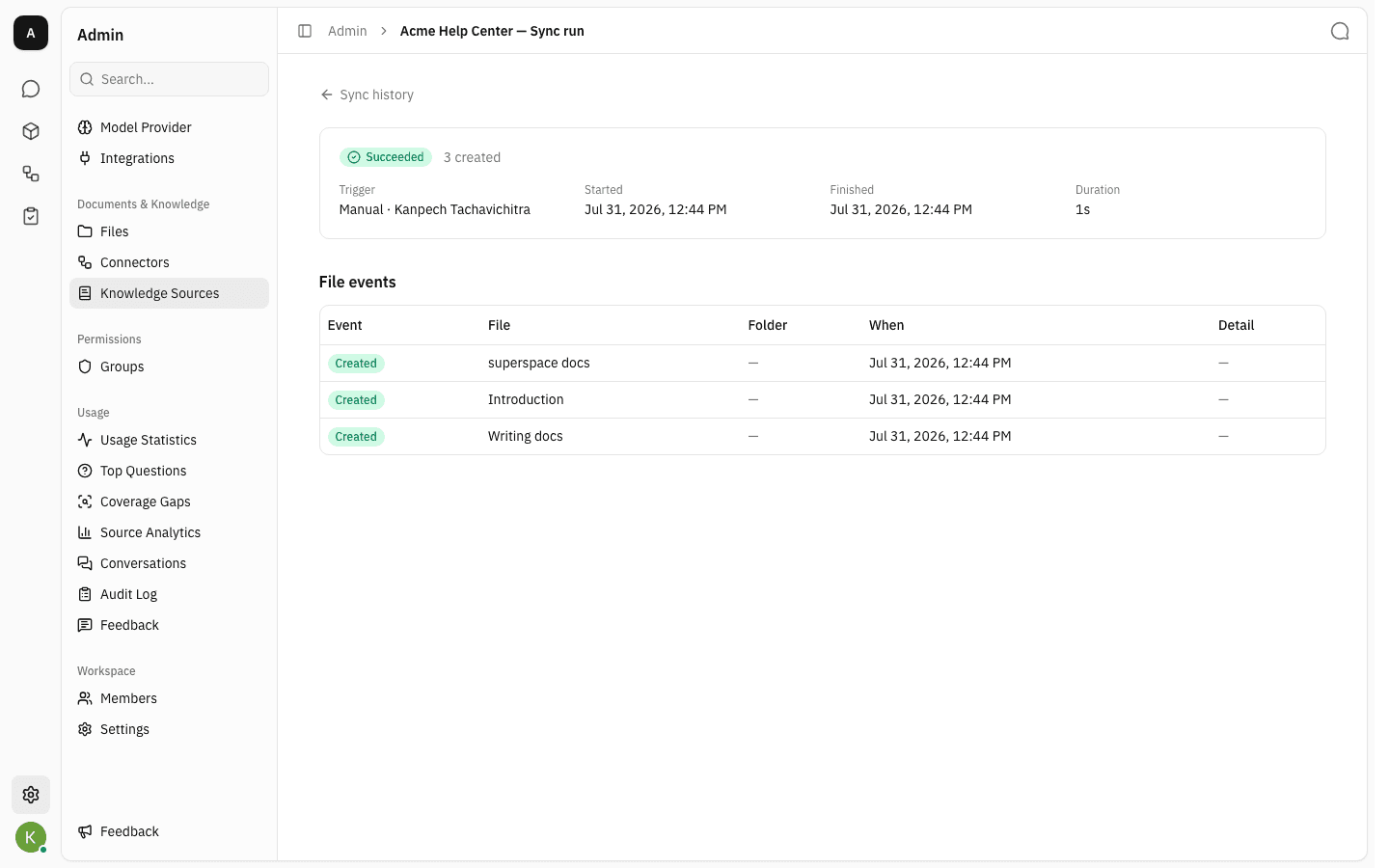
The Folder column names the folder inside the source's mirrored tree the document landed in, and is — for documents that sit at the source's root.
The Event badge says what happened to each file:
| Event | Meaning |
|---|---|
| Created | The document is new and was added to the knowledge base. |
| Updated | The document already existed and its content changed. |
| Held for approval | The source requires approval, so the document waits in the review queue. |
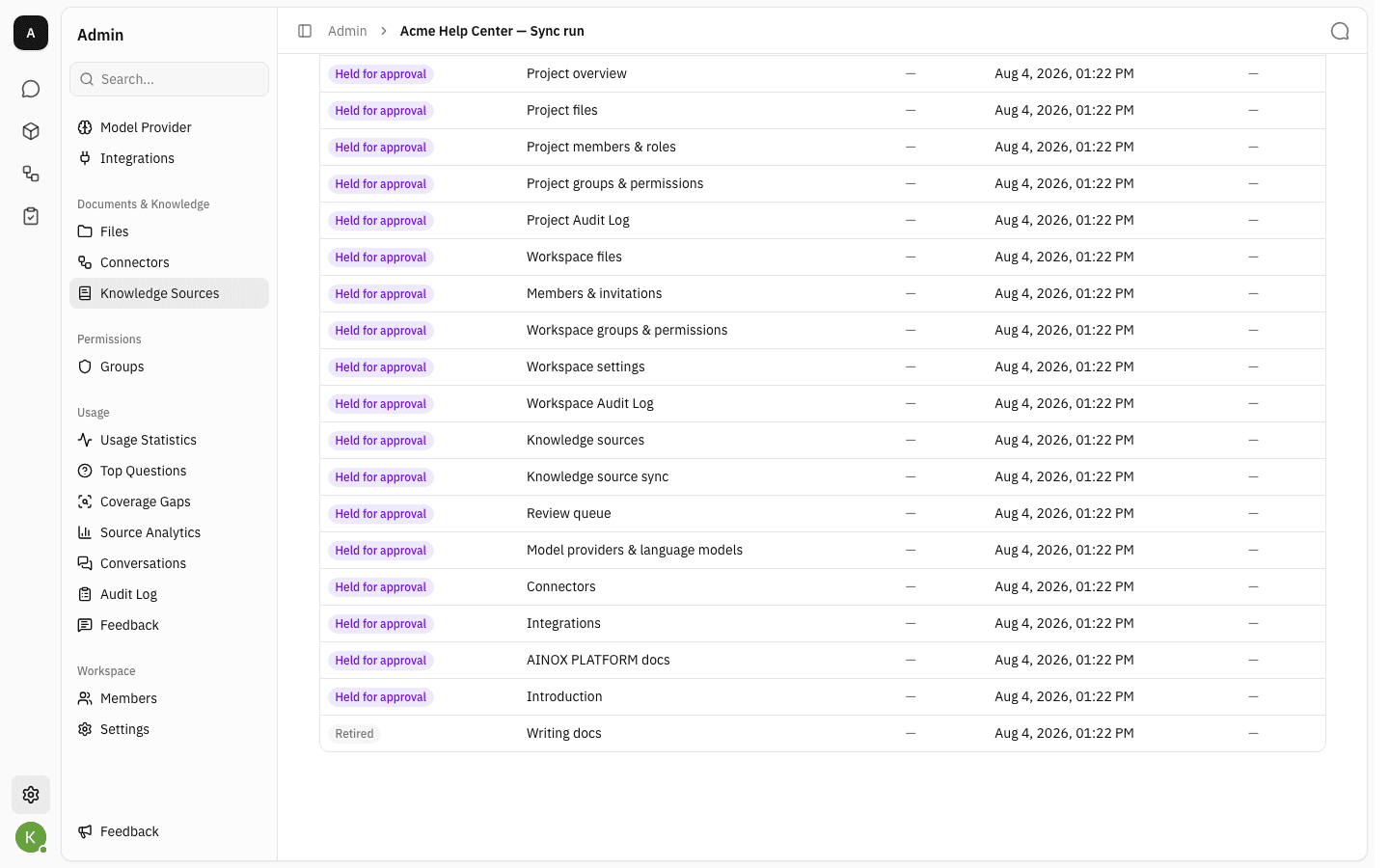
| Retired | The document is gone from the source, so it was withdrawn from the knowledge base. |
| Skipped (unsupported) | The file's type cannot be ingested. |
| Failed | The document could not be synced. The Detail column carries the reason. |
On a source set to Require approval, the run is where you see what it sent for review — each held document then turns up in the Review queue.
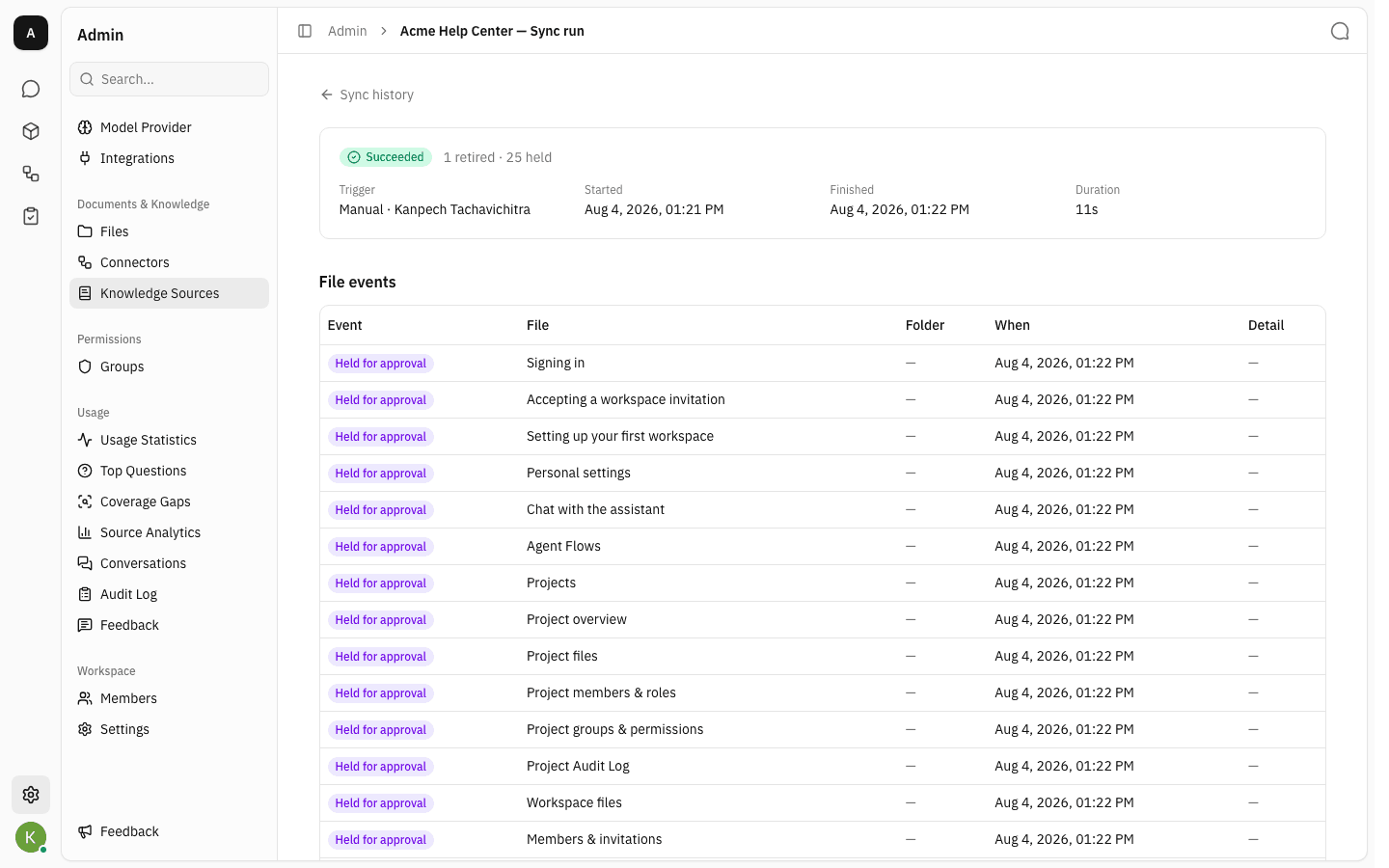
One run can mix outcomes. The same run above ends with a Retired row: a page that had disappeared from the website, so its copy was withdrawn from the knowledge base while the twenty-five changed pages went for review.
A run whose documents were all unchanged records no events at all. That is a normal, healthy result, not a failure — nothing at the source moved since last time.
Notes
- A sync compares content, not timestamps: a page that was re-published without changing produces no event and nothing for a reviewer to look at.
- Partial means the run finished but some documents failed. The failures are listed on the run, and the next run retries them — you do not have to do anything.
- Retiring a document withdraws it from the knowledge base, so the assistant stops answering from it. Deleting the source itself removes everything it synced; see Knowledge sources.
- Runs answer what did this sync do. For where does the knowledge base stand right now, the Documents tab beside Sync history compares every document against the source and against what the assistant can actually answer from.
- Manual and scheduled runs do exactly the same work. The only difference is the Trigger column.